
Let’s fix a Request Result Zero error
This article will guide you to fix a common error in Instagram Insights in Looker Studio called "Request result zero." This error shows up if you haven't added accounts to the connection, and it also helps if you can't add an Instagram account to your report.
Step 1: Start by clicking on add data
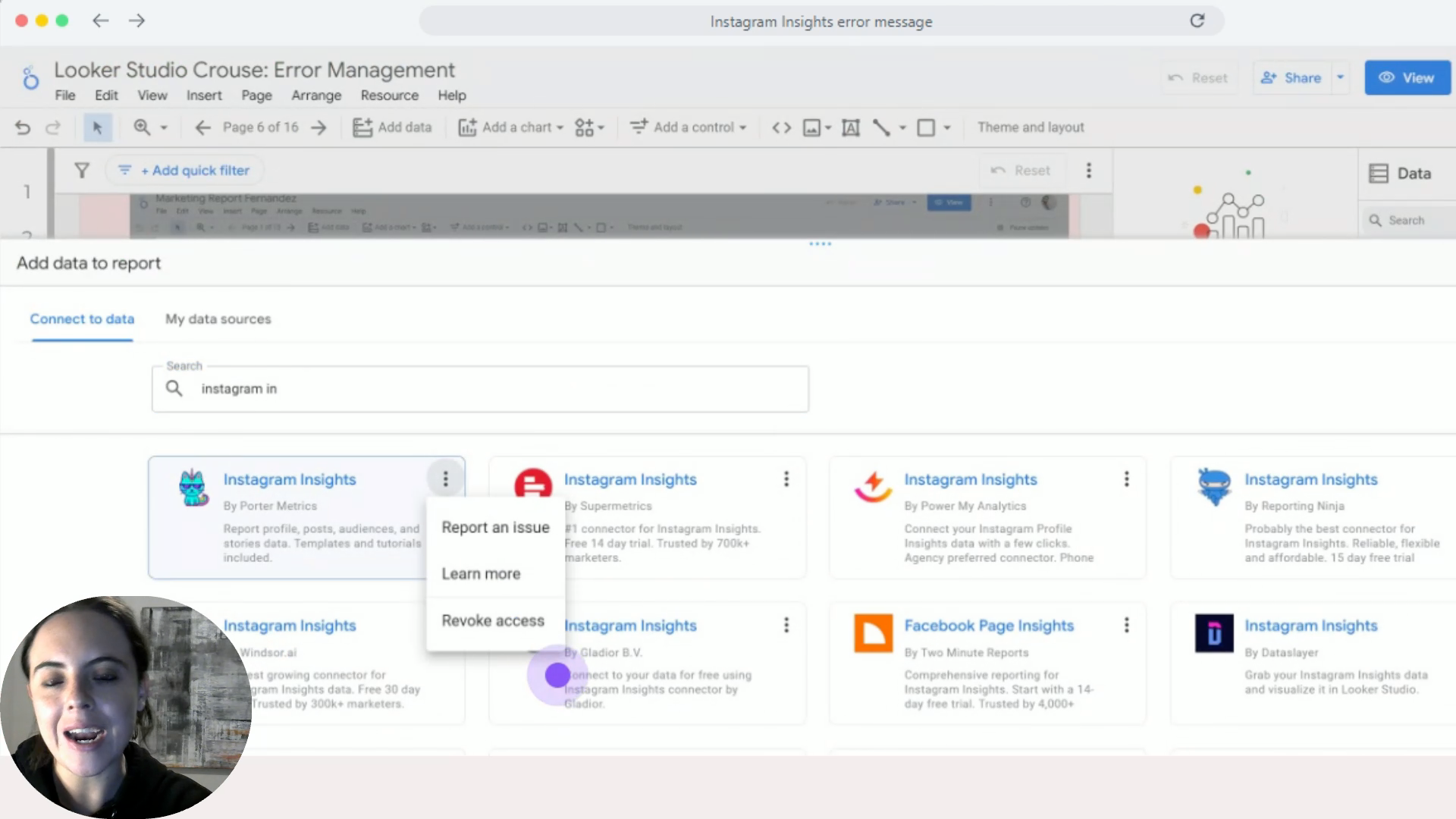
so you can revoke access for the Instagram Insights connection.
Step 2: Find the Instagram Insights connector from Porter Metrics
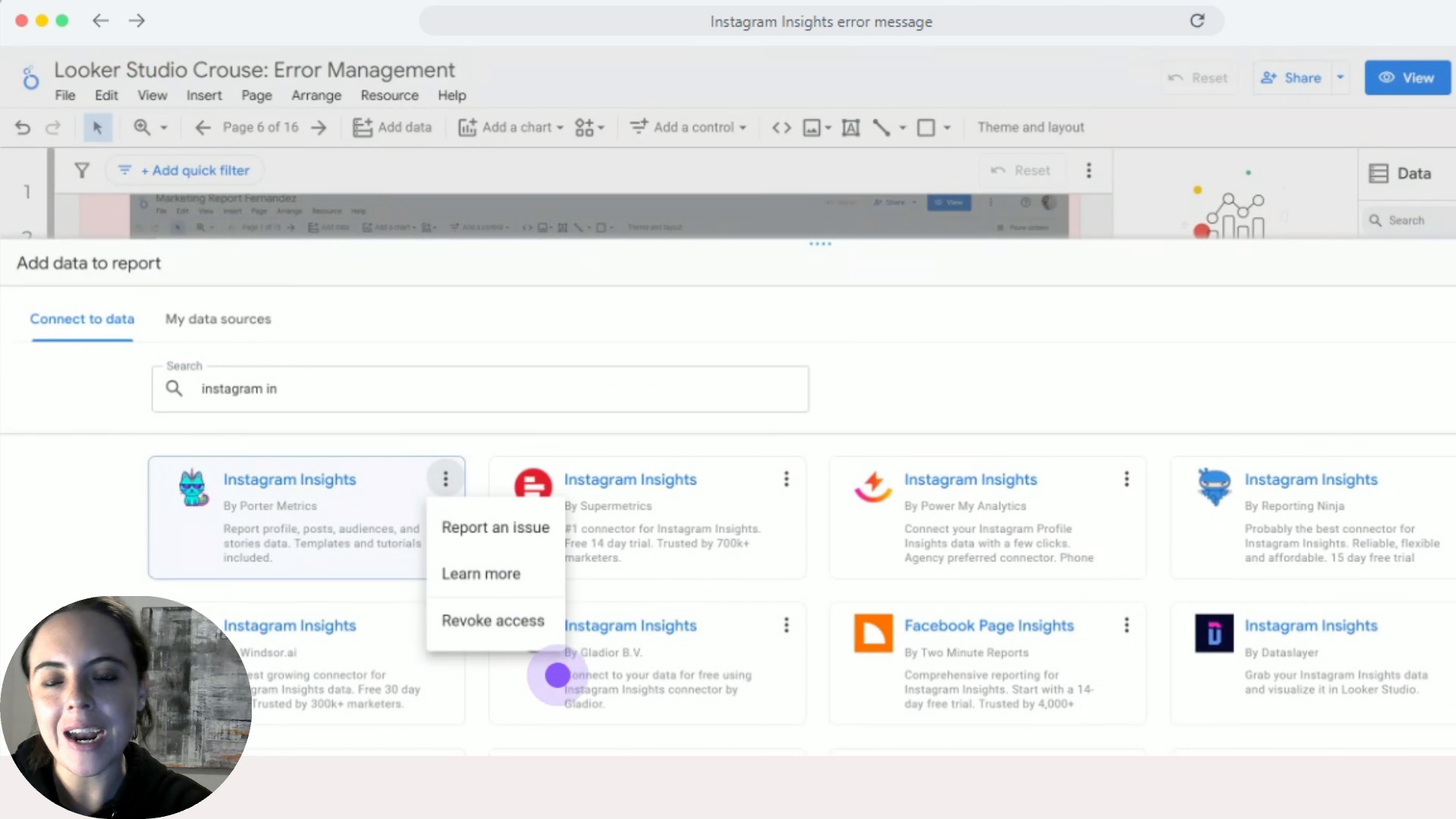
Click on the 3 dots in the top right corner of the connector and hit revoke access. After you do that, revoke again and refresh the report.
Step 3: Click on add data again
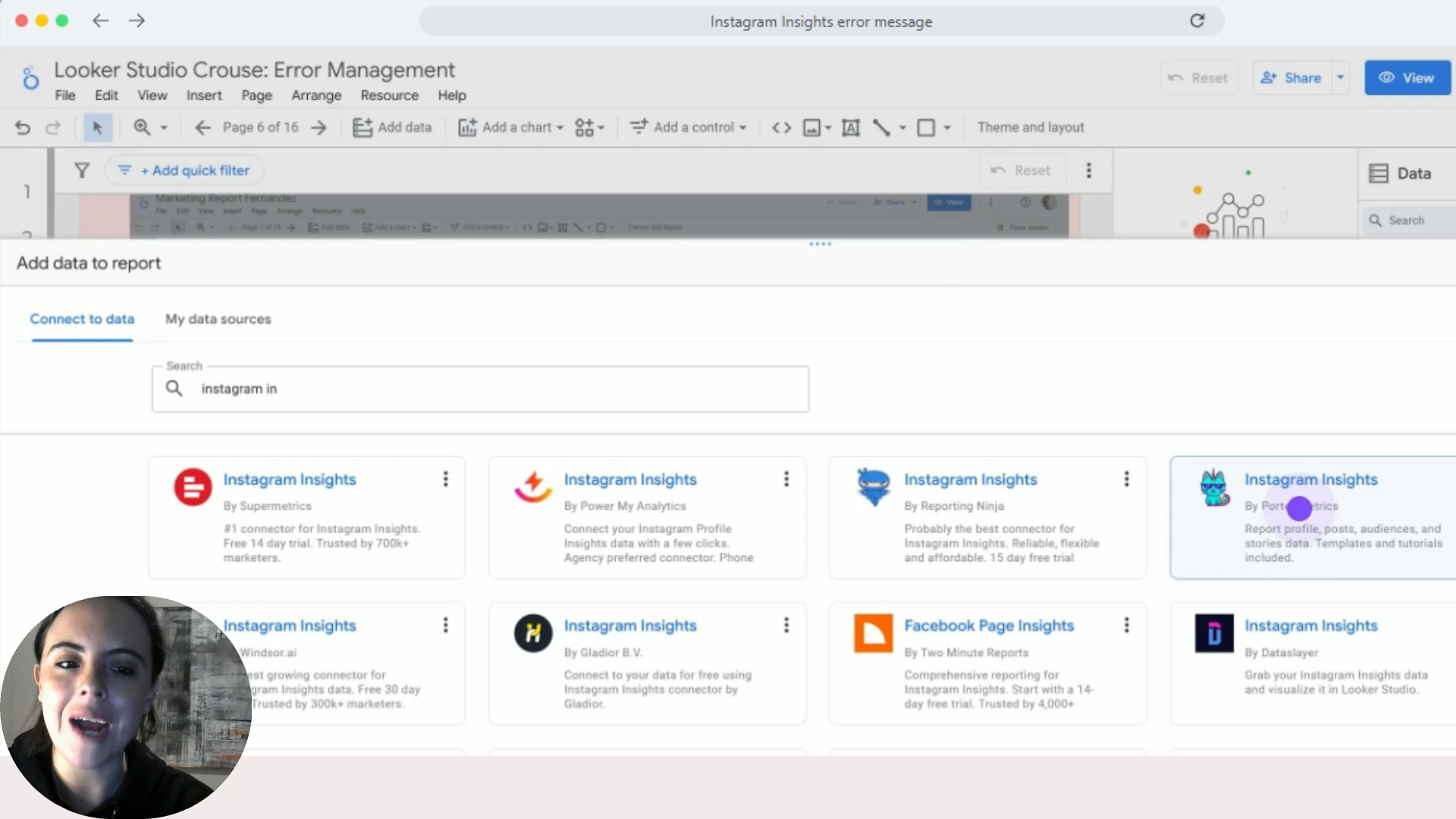
Look for Instagram Insights from Porter Metrics to add the data source and click on it to authorize it again.
Step 4: Click on re-authorize or add a new profile
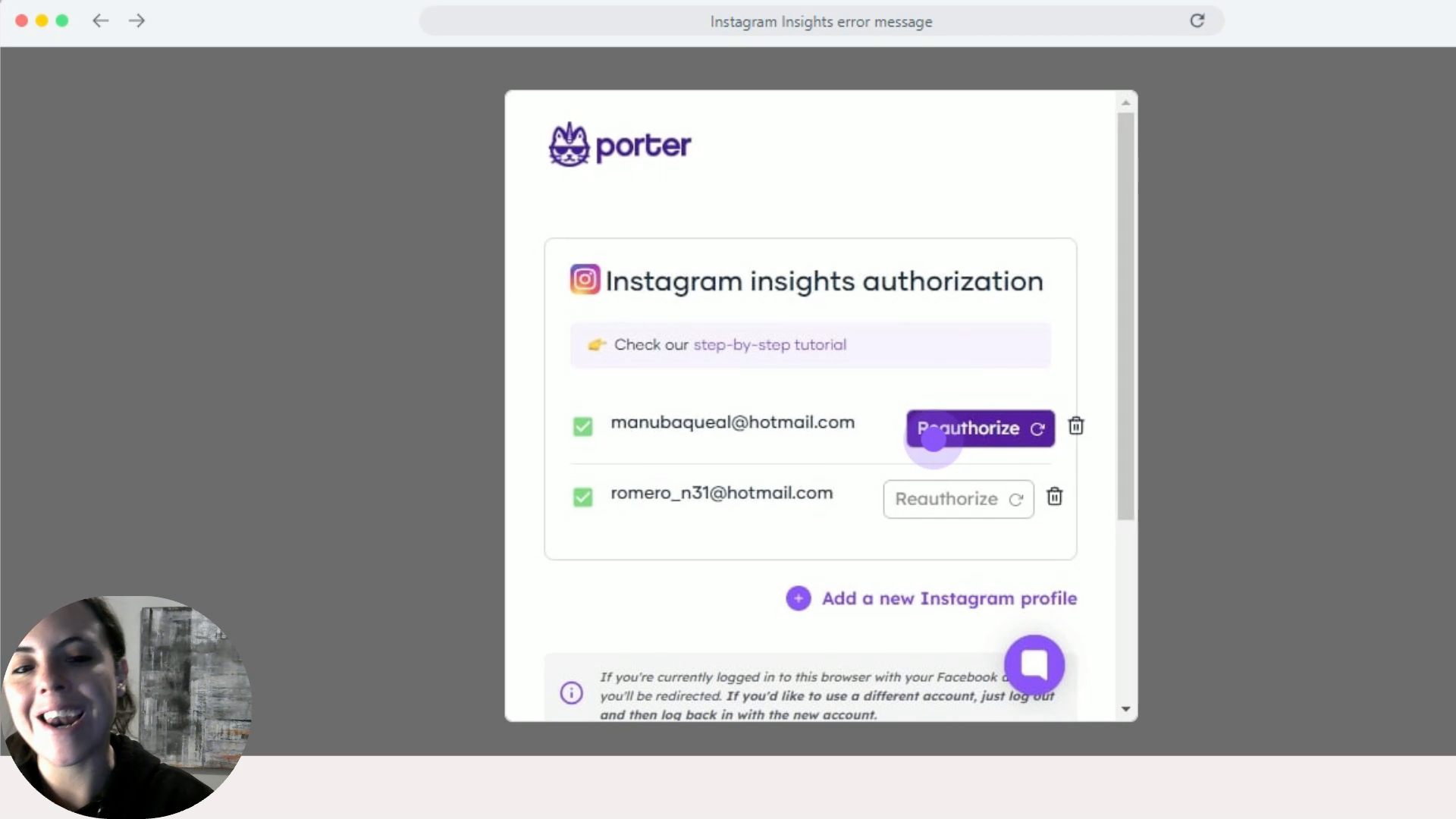
Edit the previous config and make sure you're bringing in the Instagram profiles. This error happens because we just haven't picked the profiles here that we want to see in the report, and that makes the report show as zero.
Step 5: Click on save and then agree
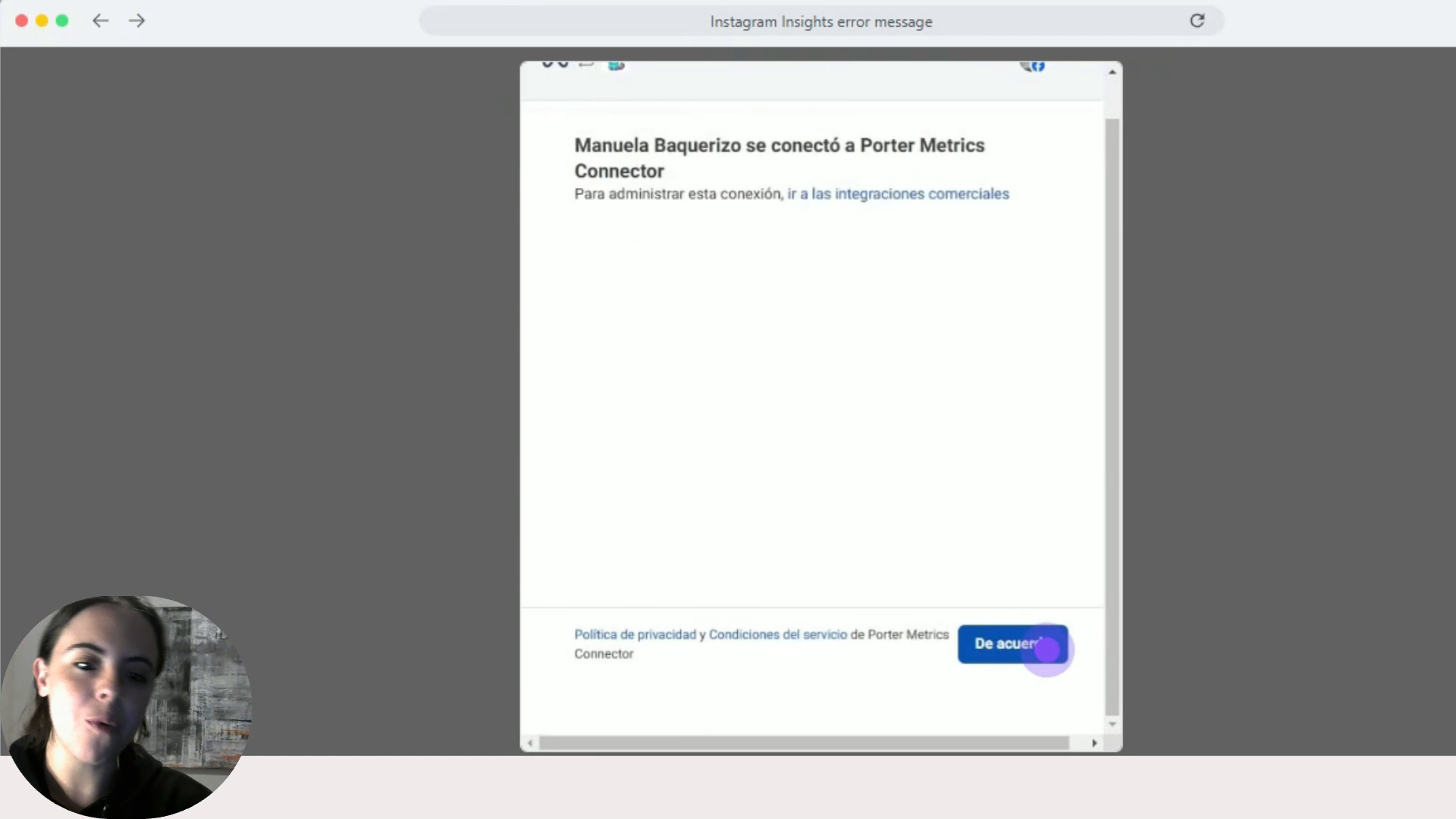
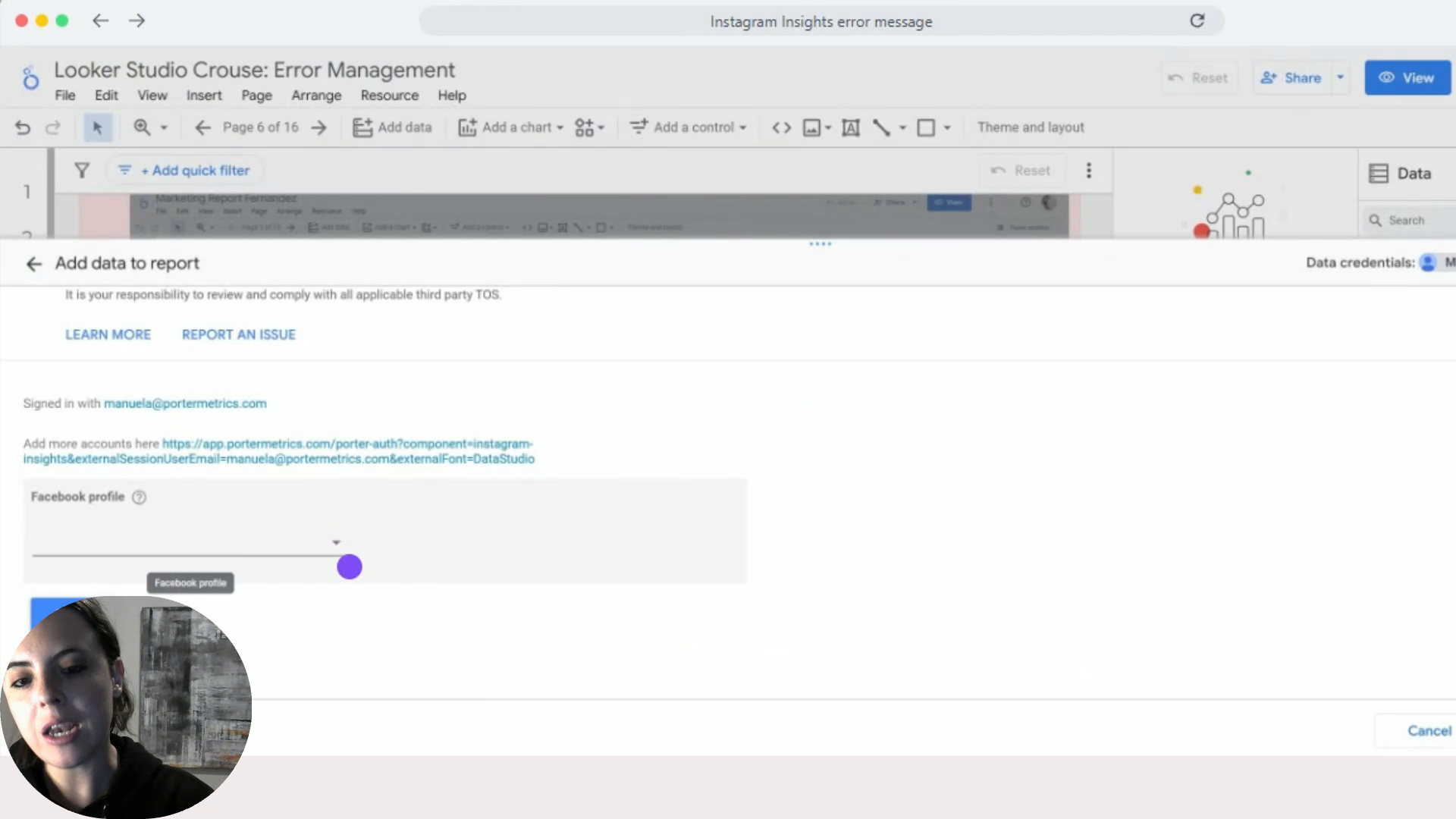
Step 6: Pick the profile you want to connect
Step 7: The profiles you picked in steps 4 - 5 should show up for you
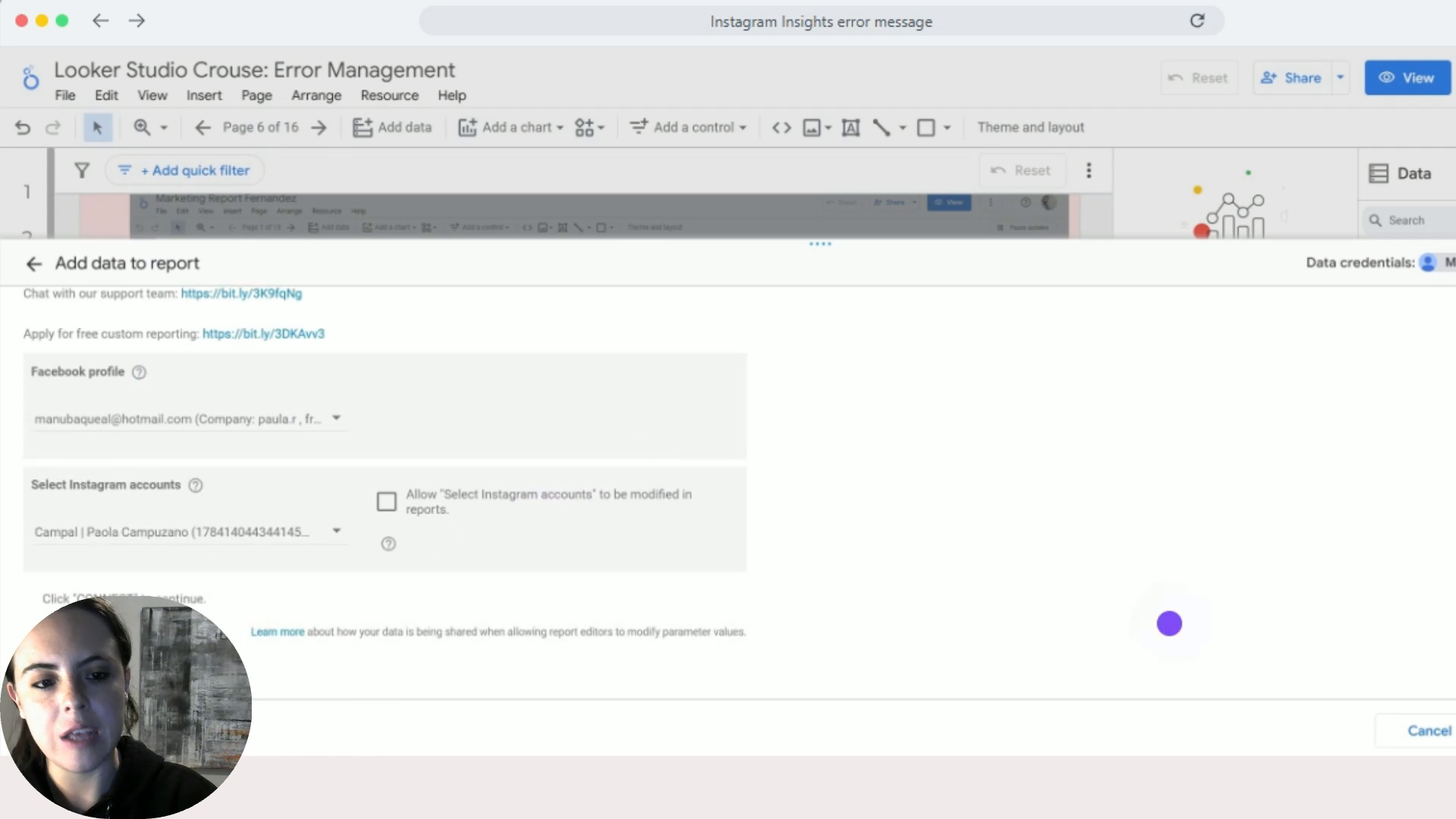
Now pick the profile you want to see in the report and click add and connect
This isn't a super common error, but it can happen with the Instagram connection.
By following these steps, you can fix the "Request result zero" error in Looker Studio.
Step-by-step link: IG Error Request Error Zero