Sometimes, when opening a report in Looker Studio, you might see an error message saying a dimension or metric is missing. This kind of error is common when a field was hidden or deleted from the data source. In this article, we walk you through how to fix it step by step.
Click on “See details” in the error message that pops up in your chart or table.
You'll see the error says the configuration is incomplete, because at least one dimension or metric is missing.
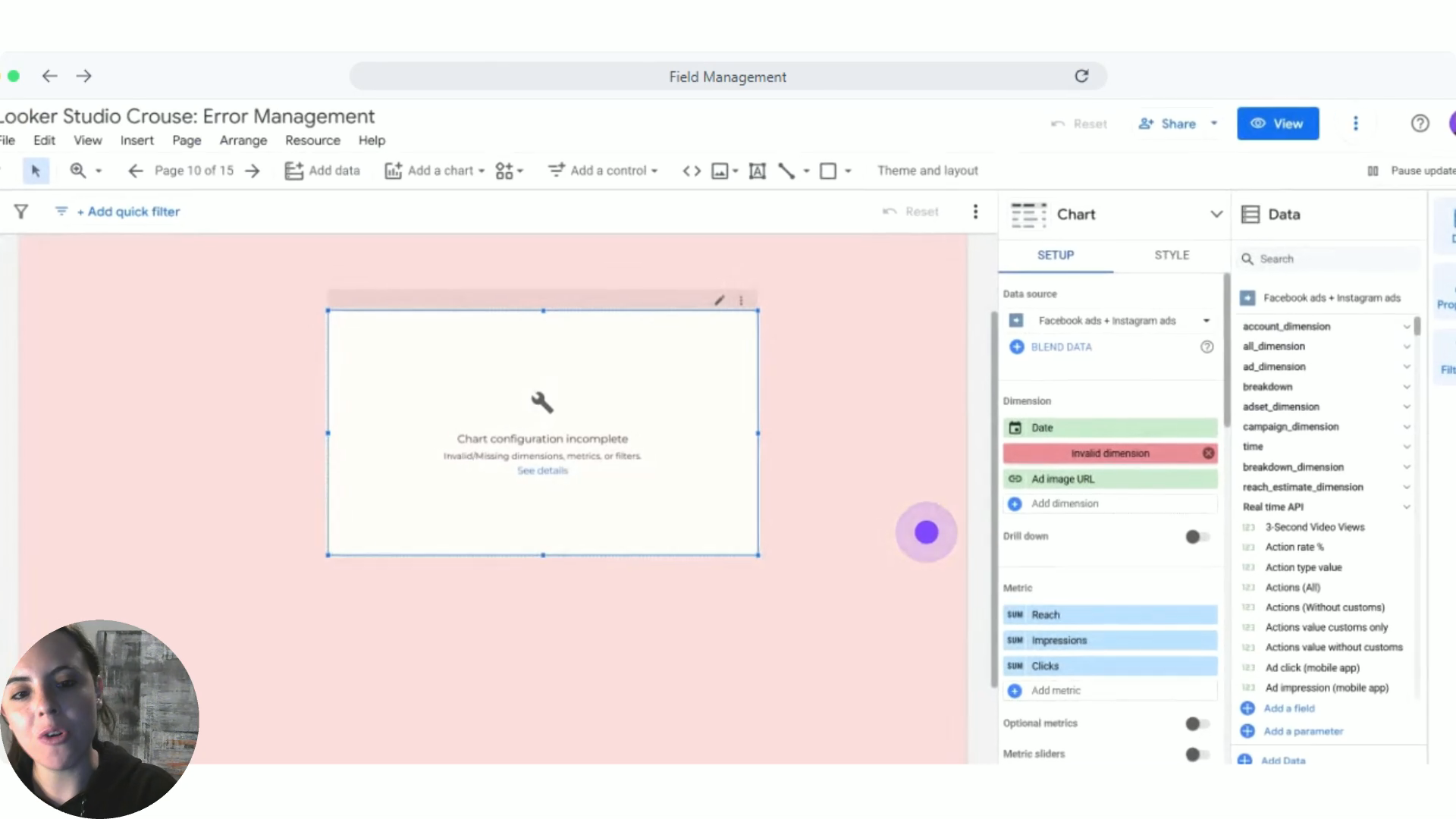
Next, go to the table that's giving you trouble and find the field marked as invalid. This will let you know which dimension or metric is missing.
Select the invalid dimension (usually it shows up in red or is empty) and remove it temporarily.
In this example, we know the dimension was the ad image. However, when you look for it in the list of available fields, it doesn't show up.
To fix this:
Click on Resources > Manage added data sources.
Select Edit on the corresponding source.
In the fields panel, find the field you need — in this case, it might be called “Add Image” or “Imagen del anuncio”.
You'll see the field appears, but it's not highlighted in green, which means it's hidden.
Click on the three dots right next to the field name.
Choose “Show” to enable it again.
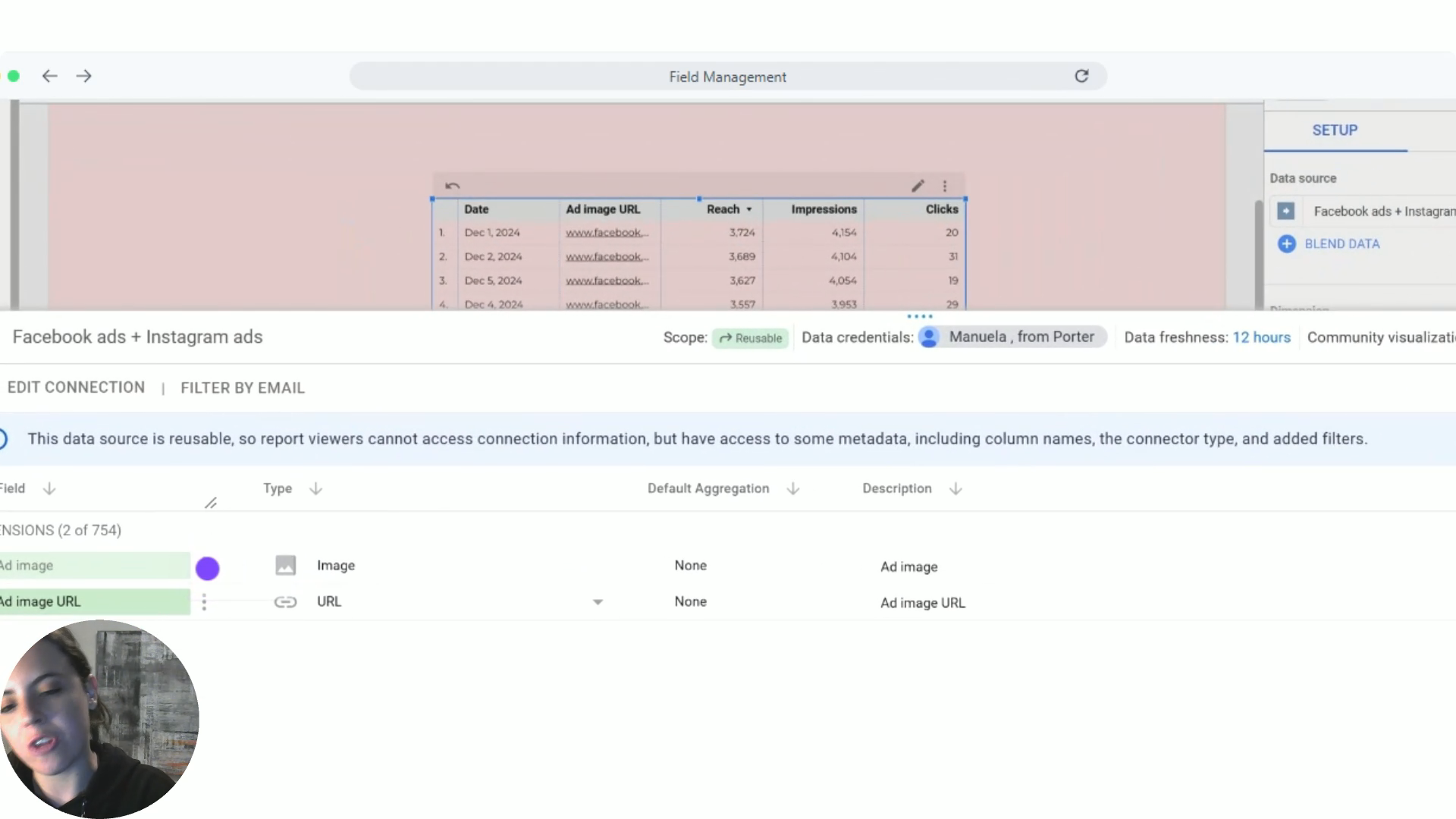
Click on “OK” or “Done” to close the data source editing.
Go back to your table and try adding the field again.
Now you should see “Add Image” or the ad image among the available dimensions.
This error can also happen if:
You updated the connector and some fields were hidden automatically.
You changed the connected account and some fields aren't available with the new permissions.
In any of these cases, checking the field visibility in the connection is an effective solution.
Still have questions or the field isn't showing up even though it's visible? Write to us at [email protected] or open the chat on our website. We're happy to help.